

Move your site without losing pages
Scan your old site to get a full list of its pages. Scan again after the move to find broken redirects, missing pages and new problems before they cost you visitors.
Does this sound familiar?
If this sounds like your week, read on. Below is how PixyScan helps.
- Your redirect map is a spreadsheet nobody has checked against the real site.
- Nobody has a full list of the old URLs, so pages could vanish unnoticed.
- Weeks after launch, traffic is down and nobody knows why.
How PixyScan helps
How PixyScan helps
Each card is a real screen in the app: what you see there and what you do with it.
- 01
A full list of the old site
The Pages screen lists every URL with its status code, click depth and whether it is in your sitemap. Export it before you change anything.
- 02
Redirect problems found
The crawler follows every redirect to its end. Chains with several hops and loops are flagged with every URL involved, so you can point each one straight at its target.
- 03
See what broke after launch
Scan after the move and again as you fix things. The Changes screen shows New, Resolved and Still open problems, and which pages were added or removed.
Getting started
Get started in 3 steps
- Step 1
Before: scan the old site
Scan the whole site and export the Pages list (Hobby and above). That is your record of every URL before the move.
- Step 2
During: scan staging
Add staging as its own site, with HTTP Basic Auth or custom headers if it is protected. Fix redirect chains, loops and broken links before launch.
- Step 3
After: scan daily
Scan your live site daily for the first few weeks. The Changes screen shows new problems the day they appear.
Worth knowing
- Filter pages by whether they are in your sitemap, and find pages nothing links to.
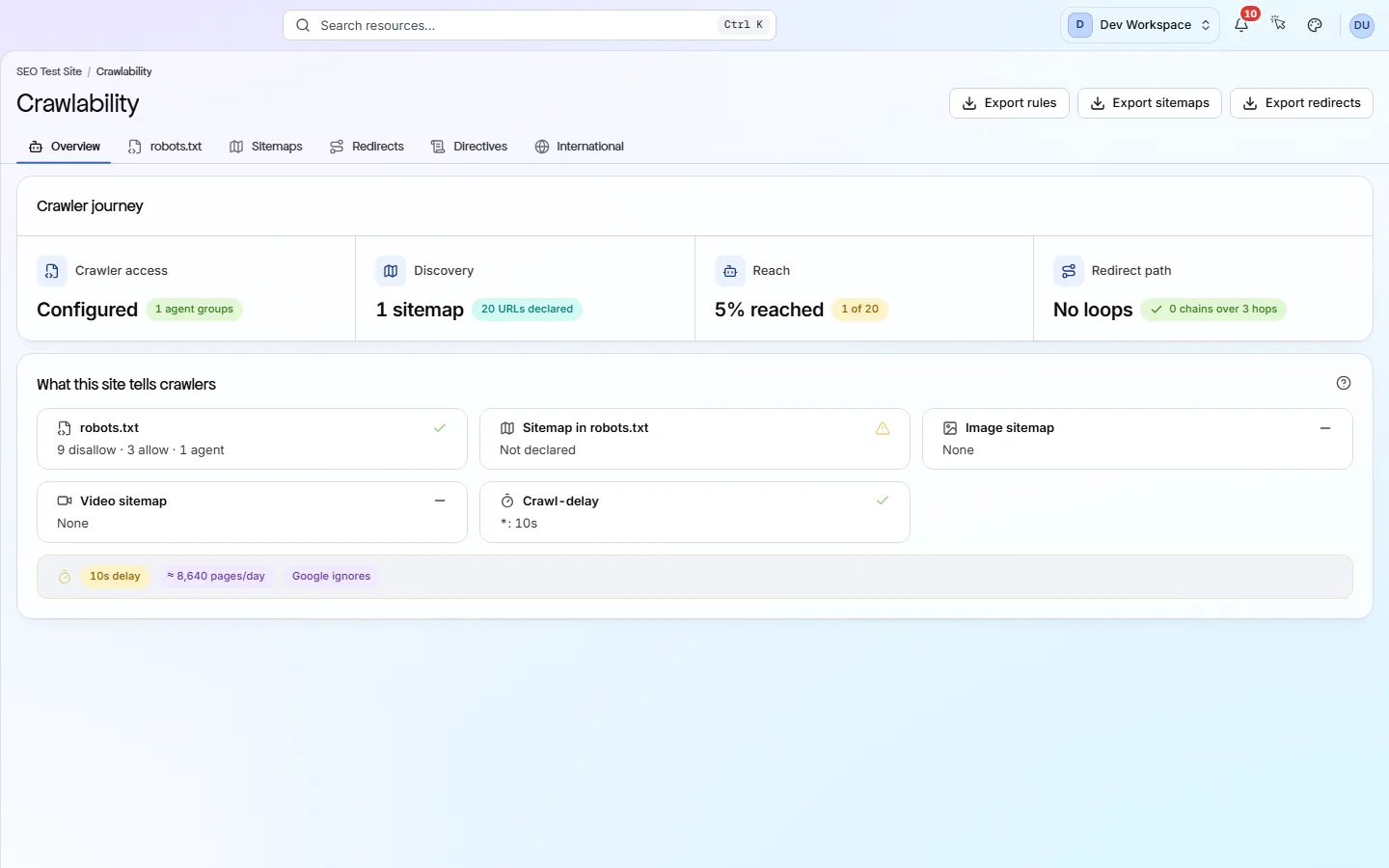
- See your robots.txt rules and sitemaps side by side on the Crawlability screen.
- Scan a password-protected staging site with HTTP Basic Auth or custom headers, stored encrypted.
- From Hobby up, export page lists as CSV, XLSX or JSON to build your redirect map.
What it doesn’t do
- It does not write redirect rules. It gives you the URL list and checks the redirects you set up.
- No Google Analytics data. From Hobby, connect Google Search Console to compare clicks and impressions by page before and after the move.
- The Changes screen compares scans of one site. If your domain changes, compare the two exports yourself.
Start with Hobby
Hobby ($19 a month) adds scan comparison and exports, the two things a move depends on, and 2 sites so old and new can sit side by side. Choose Basic ($39 a month) if either version has more than 5,000 pages: it scans 10,000 pages at a time and holds 5 sites.
FAQ
Questions you might have
Can it compare the old and new site side by side?
Only if the domain stays the same, because Changes compares scans of one site. If the domain changes, export both page lists and compare them.
Will it create the redirect map?
No. It gives you the full URL list to build it from, then finds problems in your redirects, such as chains, loops and broken targets.
Can it scan a password-protected staging site?
Yes, with HTTP Basic Auth or custom headers in Settings → Crawl. They are stored encrypted. A site behind a login form cannot be scanned.
Can I keep staging out of my live site's history?
Yes. Add staging as its own site, and its scans stay separate.
Screens and features to explore
See what is wrong with your site
Add your site and get your score, your to-do list and a fix guide for every problem. Free for one site and 500 pages a month. No card, no time limit.
No card needed · Nothing to install · Cancel any time