

User guide4 min
Inside a finding
Open a check from the Issues screen to get a screen about that one problem. Four tabs show what was found, which pages have it, how to fix it and what the check tests. Each tab has its own link, so you can send a colleague straight to it.
How to get there#
Click any row on the Issues screen.
- 1
Open Issues in the site sidebar
It is in the Understand group, below the Overview.
- 2
Click a row
The check opens on its Overview tab. To move to the next check, use the Previous issue and Next issue arrows at the top right (they show your place, such as 2 / 53), or press j and k. All issues takes you back to the list.
app.pixyscan.com/w/…/s/…/issues/…
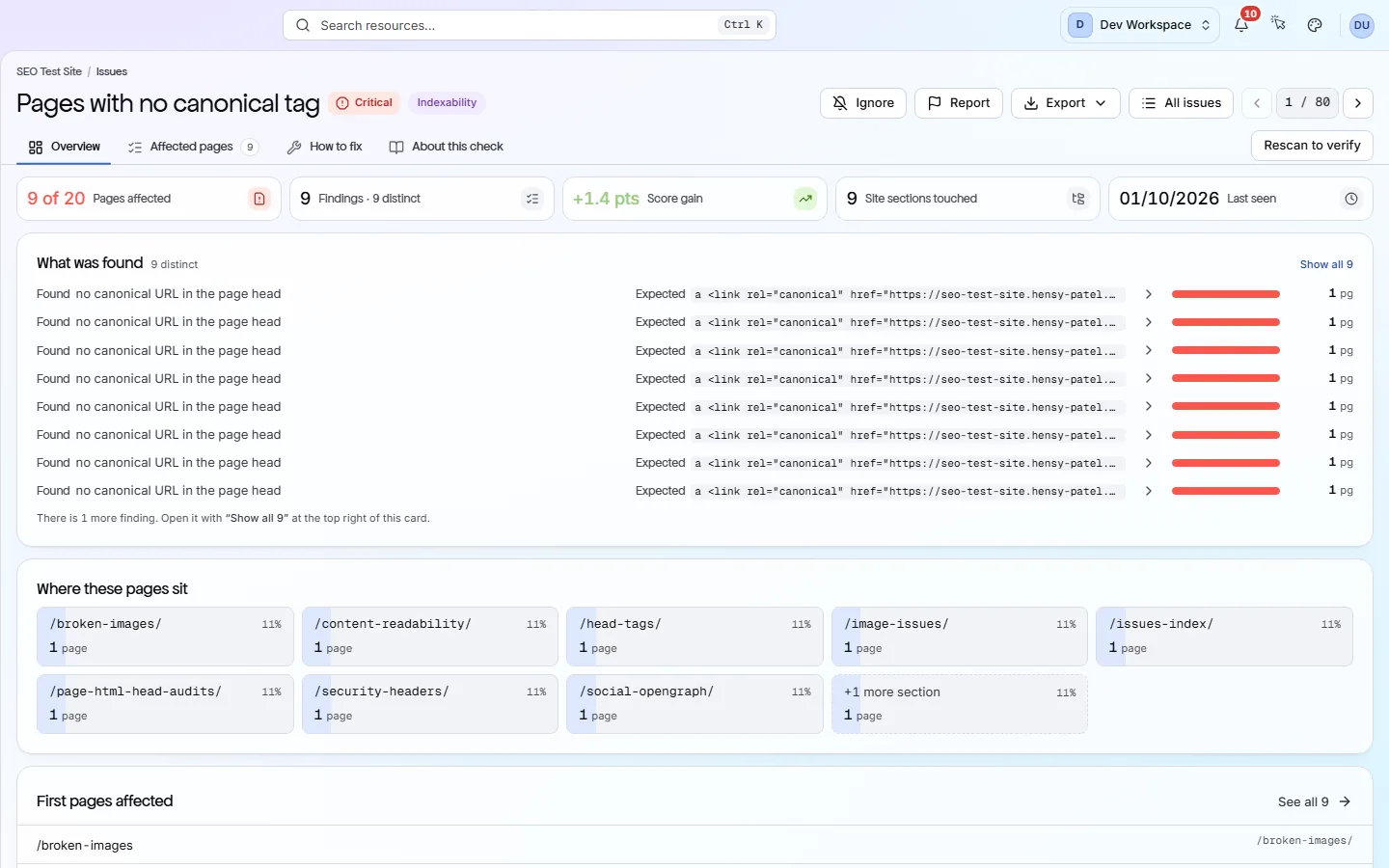
The top of the screen#
Five figures sit across the top of the Overview tab. The buttons in the header are the actions you can take.
| Field | Example | What it does |
|---|---|---|
| Pages affected | 68 of 80 | How many crawled pages have the problem. A check that belongs to the whole site says Site-wide instead. |
| Findings | 68 · 6 distinct | How many times the problem was found, and how many different values were involved. Six distinct values on 68 pages often means six templates to fix, not 68 pages. |
| Score gain | +1.1 pts | Points your health score would gain if this check passed everywhere. Suggestions say Not scored, because they never cost points. |
| Site sections touched | 3 | How many top-level folders of your site, such as /blog or /shop, contain affected pages. |
| Last seen | A date | The date of the latest scan that found this problem. |
| Ignore | Button | Stops listing this check on every page, some pages, or all but some pages. An ignored check still costs its points. |
| Report | Button | Tells the PixyScan team you think the check got it wrong, such as flagging a page it should not have. It does not ignore the check. |
| Export | Button | Downloads this finding as a PDF, CSV, Excel workbook, JSON or Markdown file. |
| Rescan to verify | Button | Starts a new full scan of the site, after asking you to confirm. Use it once your fix is live. |
The four tabs#
Each tab answers one question about the problem. Each has its own link you can share.
| Field | Answers | What it does |
|---|---|---|
| Overview | What was found? | What was found, how many pages have each value, which folders the pages sit in, and the first few affected pages. |
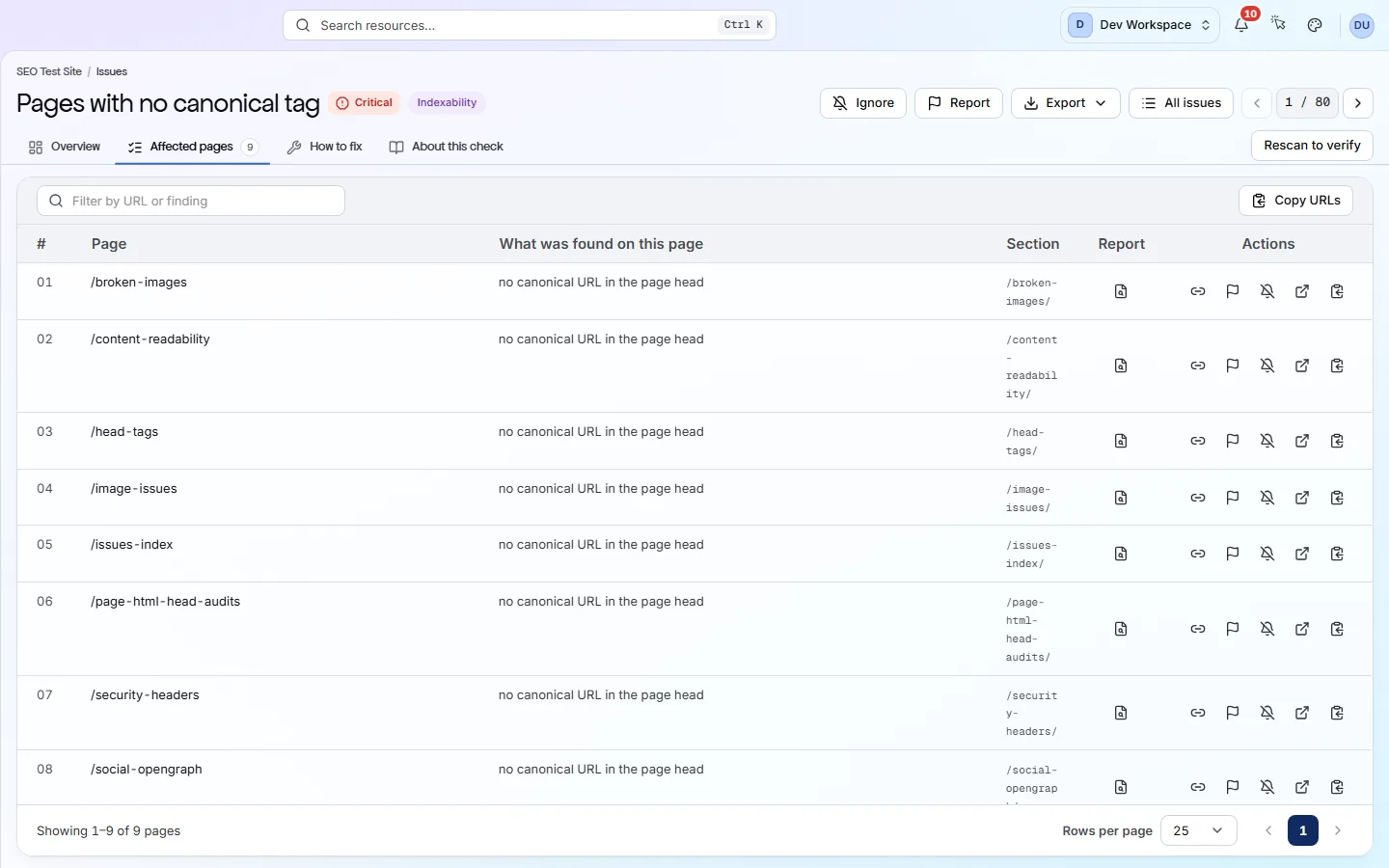
| Affected pages | Where exactly? | Every affected URL and the value found on it, with buttons to open that page's report, open the live page or copy the URL. Don't see this tab? Site-wide checks have no page list, so it is hidden for them. |
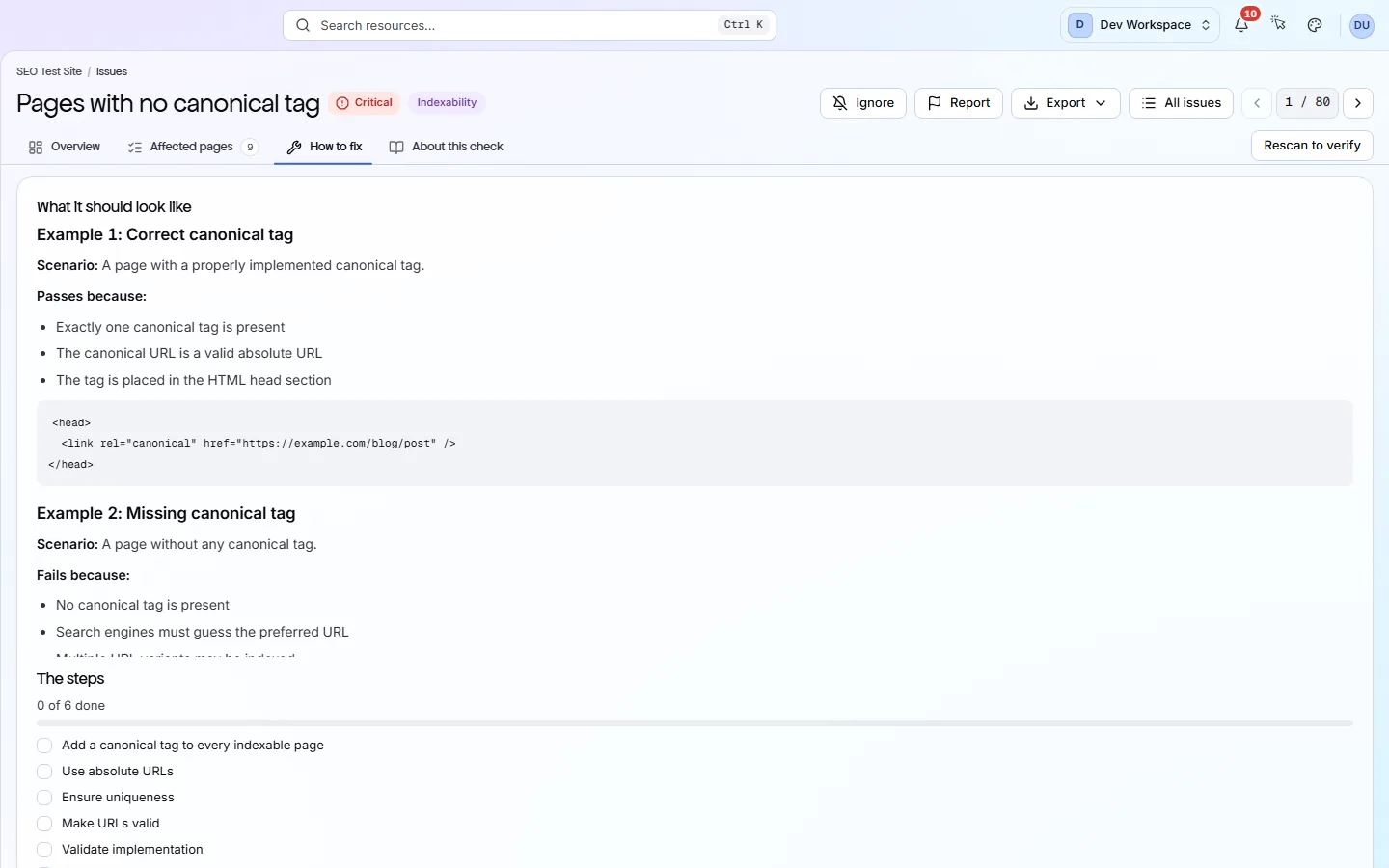
| How to fix | What do I change? | An example of the correct code (markup) or setting, then the steps as a checklist. It remembers what you ticked for this site. |
| About this check | What does it test? | What the check looks for and why it matters, how it is detected, its severity and weight, and references for further reading. |
app.pixyscan.com/w/…/s/…/issues/…/fix
app.pixyscan.com/w/…/s/…/issues/…/affected-pages
Fix guides are written by people, and a few are still missing
After you fix it#
Scan again to confirm the fix, then check what changed.
- 1
Press Rescan to verify
Do this once your fix is live. It runs a new scan.
- 2
Check the result
If the fix worked, the check leaves the Issues list. It shows as Resolved under the Passing filter.
- 3
Fixed several things? Open Changes
Changes lists every check that is new, resolved or still open since the previous scan.
Does something here not match what you see in the app? Tell us