

User guide3 min
Workspace overview
The workspace overview is the first screen after you sign in. A status card at the top adds up the whole workspace. Below it, each site has its own card. Together they show which site needs attention first, without opening any of them.
How to get there#
You land here after signing in. You can come back from any screen.
- 1
Click the PixyScan mark at the top left
From any screen, even inside a site, this takes you back to the overview of your current workspace.
- 2
Or choose Sites in the workspace sidebar
When no site is open, the sidebar shows Add a site, then Sites, Workspace alerts and Reports, then a Settings group with General, Members and the Billing screen. Viewers do not see Workspace alerts. Only the workspace's Super Admin sees the Billing screen.
- 3
To switch workspace, use the switcher at the top right
It shows the current workspace's name. Each workspace has its own sites, members and subscription, so switching changes everything you see.
app.pixyscan.com/w/…
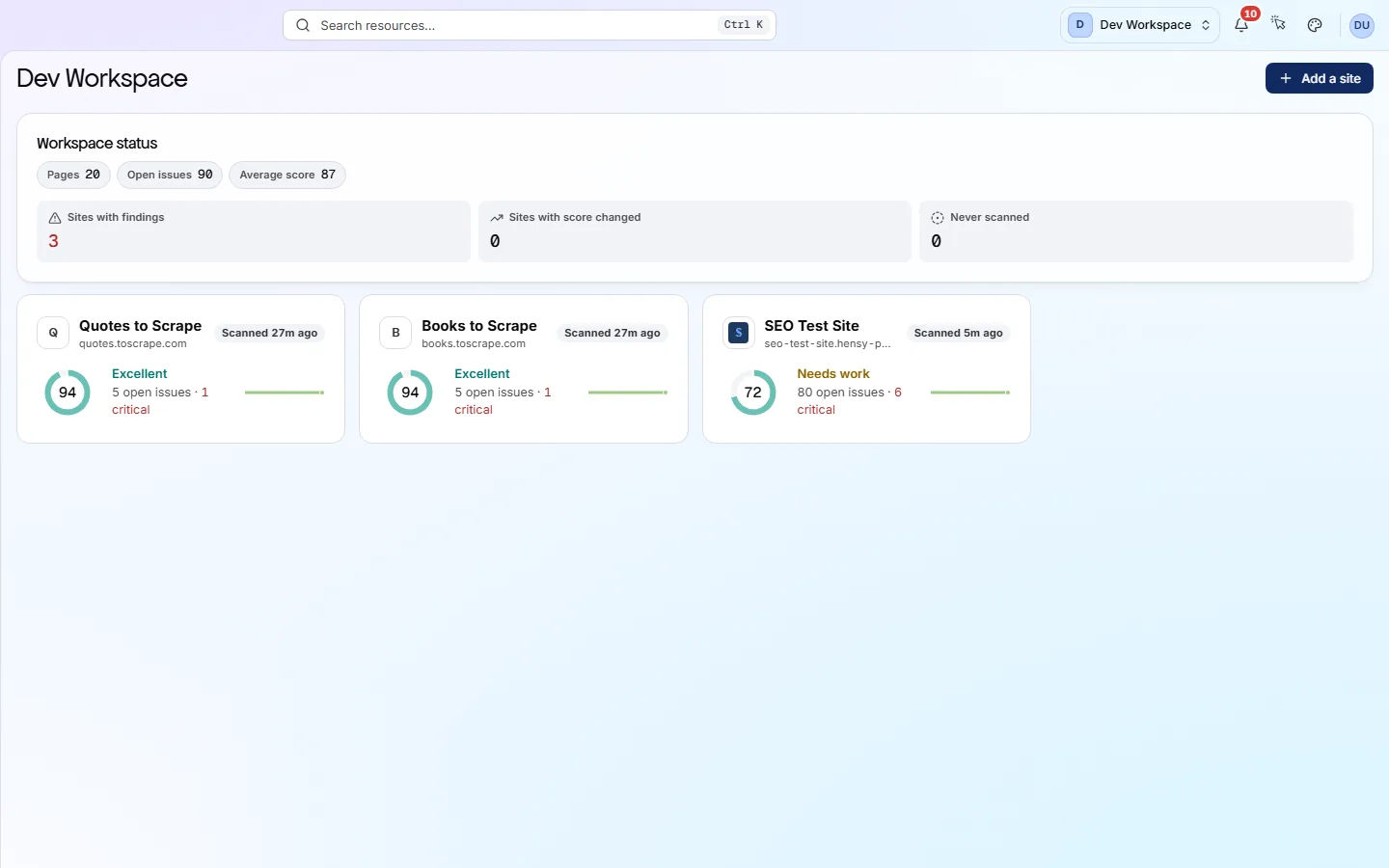
The Workspace status card#
Six numbers for the whole workspace: three small counts and three tiles.
| Field | What it counts | What it does |
|---|---|---|
| Pages | Every site | Pages crawled by each site's latest scan, added together. Sites never scanned are left out. |
| Open issues | Every site | Failing checks across all scanned sites. It counts checks, not pages, so one problem on 200 pages counts once. |
| Average score | Mean | The average health score of every scored site, rounded. A small site counts the same as a large one, so treat it as a rough guide. |
| Sites with findings | Count | Sites with at least one Critical, Important or Standard issue. It turns red when it is above zero. |
| Sites with score changed | Count | Sites whose latest scan scored differently from the one before. Open these first to see what moved. |
| Never scanned | Count | Sites you added but have not scanned yet. Above zero means a site is not being checked. |
A card for each site#
Each card helps you decide which site to open first. The lowest scores come first.
| Field | On the card | What it does |
|---|---|---|
| Status | Scanned 5d ago | Scanning, when the last scan finished, or whether it failed or was stopped. A new site shows Never scanned. |
| Score ring | 0-100 | The health score from the latest finished scan. 100 means no scored check is failing. |
| Band and change | Good ▼ −1 | The band is a word for the score range: Excellent (90 or more), Good (75 to 89), Needs work (50 to 74) or Critical (below 50). The arrow shows the change since the previous scan. A site with one scan says First scan instead. |
| Open issues · critical | 53 open issues · 4 critical | How many checks are failing, with critical ones counted separately. A site with nothing failing says All checks passing. |
| Sparkline | Up to 8 scans | A small chart of the score over recent scans. Don't see it? It appears once the site has at least two scored scans. |
Click a card to open that site's Overview, which explains the score in detail. To add another site, press Add a site in the sidebar or the header. The steps are on the Add a site page.
Does something here not match what you see in the app? Tell us