

User guide3 min
Scan history
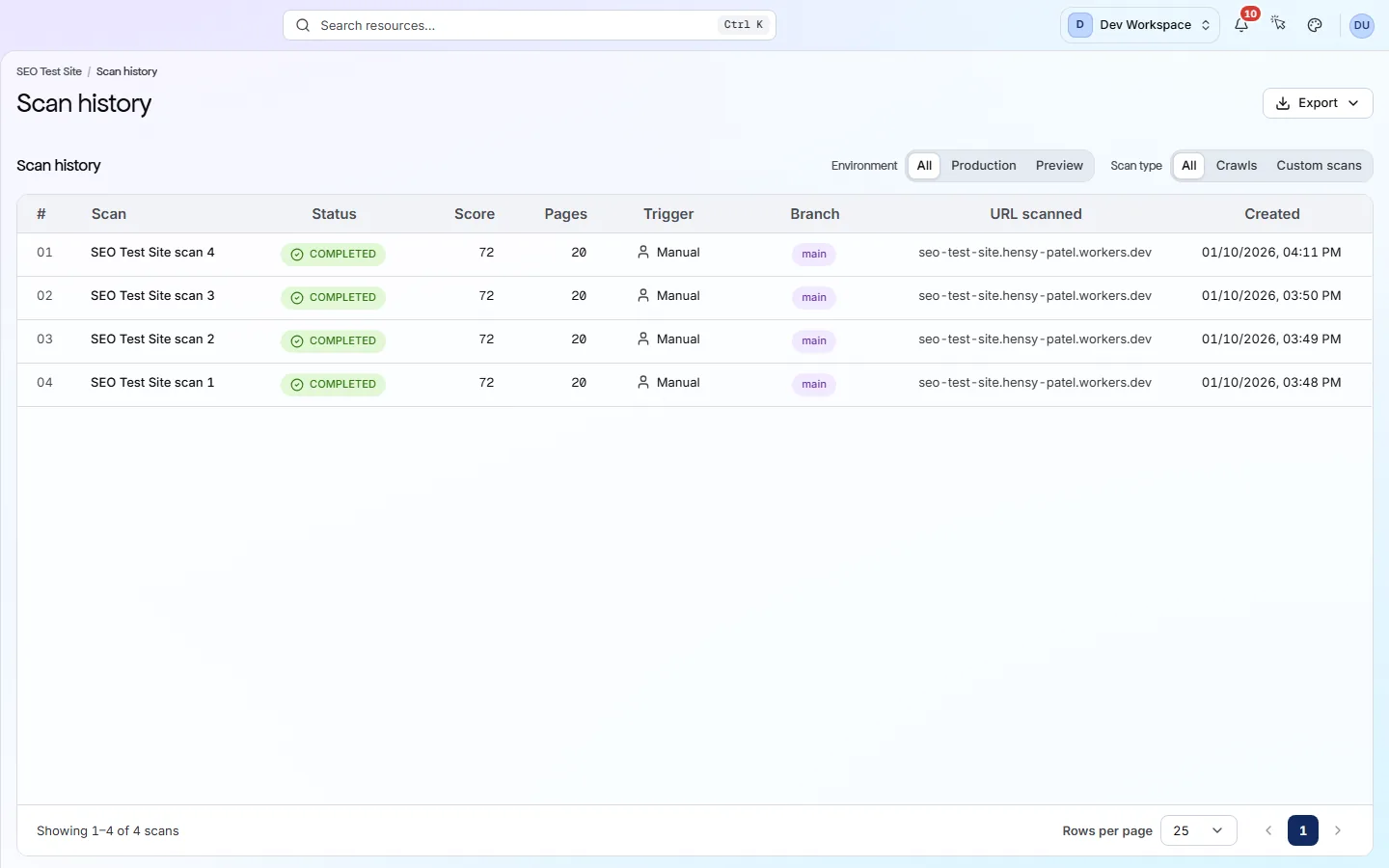
Scan history lists every scan of this site: what started it, which branch it checked and what it scored. Open any past scan to see every screen as it was then. This helps you find when a problem first appeared.
How to get there#
Scan history is the last item in the Monitor group of the site sidebar.
- 1
Open Scan history in the site sidebar
It is the last item in the Monitor group.
- 2
Or click the scan count on the site overview
The row of links below the health score shows the number of scans, such as “4 scans”. View scan history, in the menu beside Scan now, goes to the same place.
app.pixyscan.com/w/…/s/…/scans
Read a row#
Each row has eight columns about one scan.
| Field | What it tells you | What it does |
|---|---|---|
| Scan | Its name | The scan's name. A scan of chosen URLs has a Custom badge. |
| Status | COMPLETED · FAILED · CANCELLED | Whether the scan finished. A scan still running shows PENDING or CRAWLING. A failed scan shows a one-line reason and stays in the list, so you know it happened. |
| Score | 0-100 | The health score from the scan. Scans that did not finish, such as cancelled ones, say Not scored. |
| Pages | Count | How many URLs the scan crawled. Each one used one URL credit. |
| Trigger | manual · schedule · SDK | What started the scan: someone pressing Scan now, the site's schedule, or your CI pipeline (automatic build-and-deploy process) through the PixyScan SDK. A scan limited to some checks shows how many it ran instead. |
| Branch | main, a preview | Which branch of your site the scan checked. A scan is only ever compared with earlier scans of the same branch. |
| URL scanned | The address | The address the crawl started from. |
| Created | When | When the scan started. |
To find a scan faster, use the filters above the table. Environment (All, Live or Preview) separates scans of your live site from preview scans. Scan type (All, Crawls or Custom scans) separates full crawls from scans of chosen URLs.
Open an old scan#
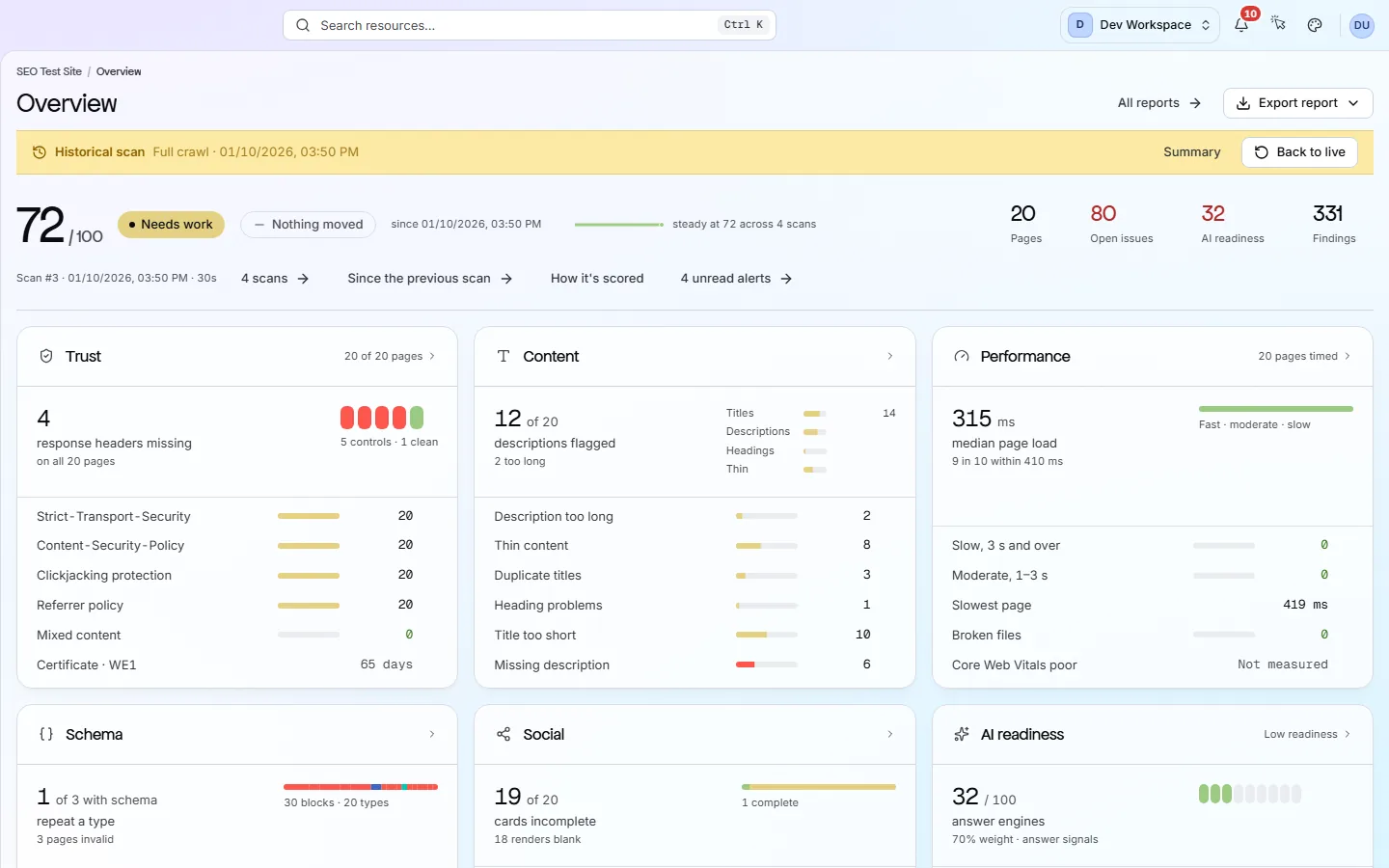
When you open a past scan, every screen of the site shows that scan until you go back.
- 1
Click a scan in the list
Its overview opens, with a Historical scan band and the scan's date at the top.
- 2
Look around
While the band shows, Issues, Pages, Content and the other screens all show that scan, not the latest one. The Scan now button is hidden.
- 3
Download a report if you need one
Reports follow the scan you have open. This is how you get a report for an older scan.
- 4
Press Back to live when you are done
This returns you to the latest scan. Summary takes you back to the old scan's overview instead.
The band says Custom URL scan, Preview scan, Partial scan or Cancelled scan instead when the scan you opened was one of those.
A past scan
How long are old scans kept?
Does something here not match what you see in the app? Tell us