

User guide8 min
Site settings
Site settings controls how one site is scanned: which URLs are crawled, when scans run, who hears about results, and how your build pipeline checks the score. Any change applies from the next scan.
How to get there#
Settings is the last entry in the Manage group at the bottom of the site sidebar.
- 1
Open Settings in the sidebar
Open the site, then choose Settings under Manage. It opens on the Checks tab.
- 2
Pick a tab
The tabs are Checks, Ignored issues, Crawl, Schedule, Alerts, Search Console, SDK & CI/CD, Members, History and Danger zone. The tab is saved in the address, so you can bookmark it or send it to a colleague.
On a narrow screen the tabs become a Settings category menu. Don't see SDK & CI/CD? Only workspace admins see it.
app.pixyscan.com/w/…/s/…/settings
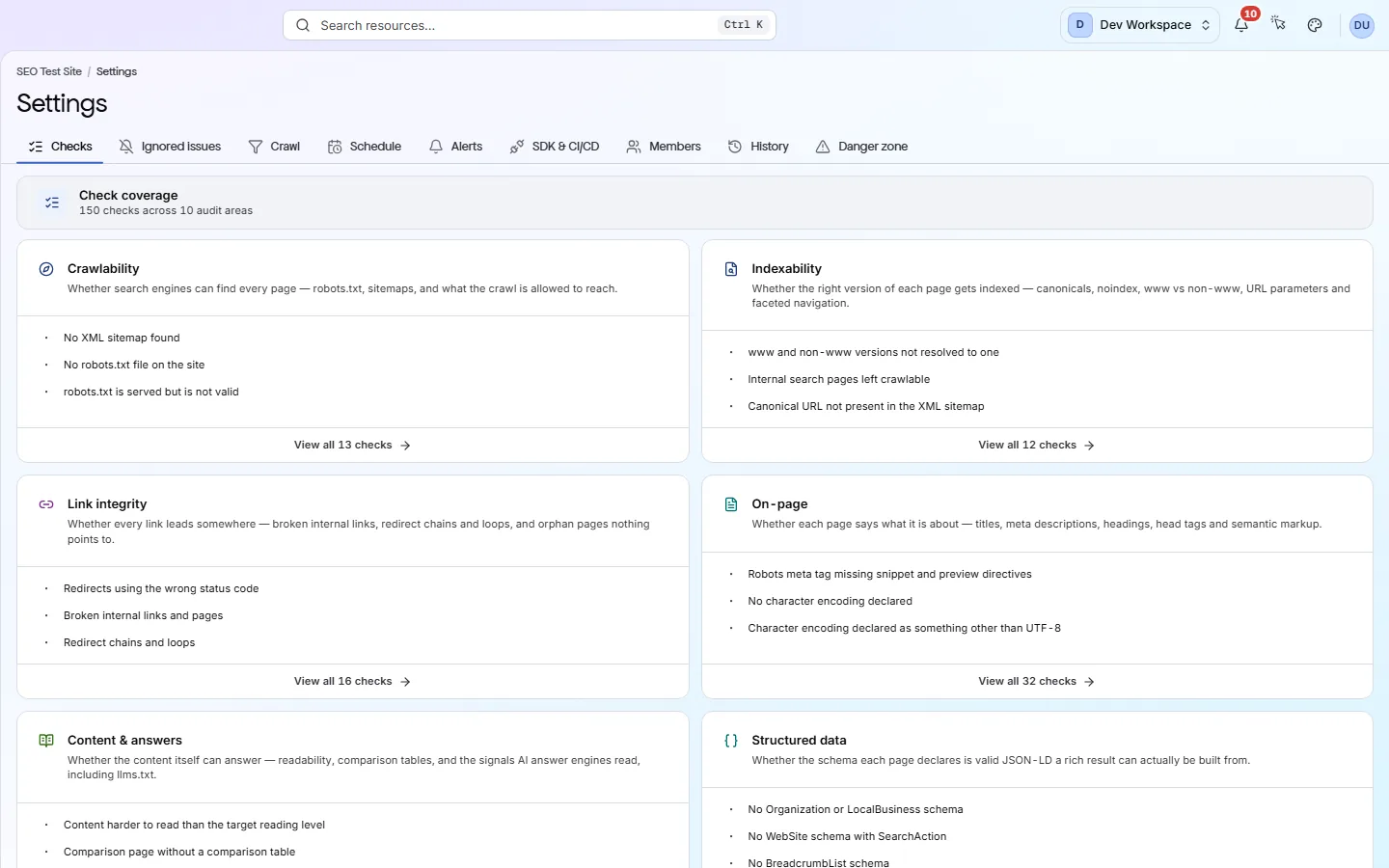
The ten tabs#
What each tab controls.
| Field | Controls | What it does |
|---|---|---|
| Checks | What gets tested | All 202 checks, grouped into their 10 categories. Every category runs on every scan and cannot be switched off. Checks your tier does not include are dimmed with a padlock. |
| Ignored issues | What you ignored | Checks you chose to ignore, everywhere or only on some pages. An ignored finding is badged and can be hidden from your lists, but it still counts towards your health score until it is fixed. |
| Crawl | What gets fetched | Four cards: which URLs are crawled, how pages are fetched, sign-in details for protected sites, and this site's PageSpeed key. |
| Schedule | When it runs | Daily, weekly or monthly scans in your own timezone. Included from Hobby up. |
| Alerts | Who is told | Two email switches, plus a Slack webhook URL and a generic webhook URL. |
| Search Console | Google search data | Connect a Google account with read-only access and choose this site's Search Console property, for the Search performance screen. Included from Hobby up; changing it needs admin access to the site. |
| SDK & CI/CD | Build checks | The client secret, the score gate and the branch-to-URL list your pipeline uses. Included from Basic up. Only workspace admins see this tab. |
| Members | Who has access | People added to this site and their role. Site members see its scans and reports, and workspace admins always have access to every site. |
| History | What changed | The latest 20 settings changes, with who made each one, when, and each value before and after. |
| Danger zone | Removing the site | Disconnect site stops crawling it and deletes its scan history and issue tracking. You can add the site again later, but its history does not come back. |
Crawl#
Each of the four cards on the Crawl tab has its own Save button.
| Field | Default | What it does |
|---|---|---|
| Include URLs or patterns | Blank | Limit the scan to matching URLs, such as https://example.com/blog. Blank crawls every reachable URL. You can add up to 20. |
| Exclude patterns | Blank | Skip matching URLs, such as https://example.com/admin. A URL that matches both lists is always skipped. |
| When a URL matches | Pre | Pre skips a matching page before it is fetched, along with anything reachable only through it. Post fetches the page and follows its links, but leaves its data out of the results. |
| Max depth | Unlimited | How many links deep to follow, from 1 to 50. When a depth is set, URLs found only in your XML sitemap are not crawled. |
| Page budget | Your tier's limit | The most pages one scan may visit. If you set more than your tier and remaining credits allow, the scan is refused, not trimmed. |
| Also crawl from sitemap.xml | On | Adds the pages listed in your XML sitemap to the pages found by following links. |
| Respect robots.txt | On | Crawls the way a search engine would, obeying robots.txt, rel="nofollow", meta robots and X-Robots-Tag. |
| JS rendering | Server HTML | Server HTML reads the page as your server sends it, which is fast and right for most sites. Rendered JavaScript runs the page in a headless Chrome browser first, for sites that build their content in the browser. |
| User agent | Default (pixyscan-bot) | How the crawler identifies itself: the default, Desktop Chrome, Mobile Chrome, Googlebot (smartphone), or a custom string. |
| Rate limit healing | Off | Waits a set number of seconds between pages, for servers that block fast crawlers. A long delay can stop a large scan from finishing. |
| Signing in to this site | Off | HTTP Basic Auth (a username and password) and up to 10 custom headers, for staging or preview sites behind a login. Values are stored encrypted and never shown again. |
| PageSpeed reports | Workspace key | Turn off Use workspace PageSpeed settings to give this site its own Google PageSpeed API key. |
Why is an option locked?
Schedule#
A schedule scans the site for you, daily, weekly or monthly. Included from Hobby up.
Each scheduled scan is compared with the one before it, and Changes then shows what is new, what was fixed and what is still open.
- 1
Open the Schedule tab and press New schedule
You can also open the menu beside Scan now and choose Schedule scans.
- 2
Choose how often, and when
Give the schedule a name, then complete the sentence: every day, every week on a weekday, or every month on a date from the 1st to the 28th, at a time you pick. The time uses your browser's timezone, which is shown beside the first run date.
- 3
Press Create schedule
The schedule appears as a card with its next and last run. You can pause, edit or delete it there, and deleting it keeps the scans that already ran.
How often should I scan? As often as the site changes. Publish every day? Scan daily. Rarely change it? Monthly is enough.
What if PixyScan was down? Missed runs are run once when service returns, however many were missed.
Every scheduled scan uses credits
Alerts#
Alerts tell people about scans by email, in Slack, or through a webhook (an automatic message sent to a web address you choose).
- 1
Choose the email switches
Email when a scan finishes or fails, and Email when the score drops or a new Critical issue appears, are both on by default. They apply to the whole site, and they also decide which events go to Slack and the webhook.
- 2
Paste a webhook URL to add a channel
Slack webhook URL takes a Slack incoming webhook, and Generic webhook URL takes any address that accepts JSON. Both must start with https://, and an empty box turns that channel off.
- 3
Press Save notifications
The new settings apply to the next scan.
| Field | Where it can go | What it does |
|---|---|---|
| Scan completed | Email · Slack · Webhook | A scan finished. The email includes the score, new and fixed issues, and a link to the report. |
| Scan failed | Email · Slack · Webhook | A scan could not finish. Keep this on, so you notice if scheduled scans stop working. |
| Score decreased | Email · Slack · Webhook | The health score dropped compared with the previous scan. It is only sent when there is a previous scan. |
| New critical issue | Email · Slack · Webhook | A critical check that the previous scan did not report is now failing. Ignored checks never trigger it. |
| Score below threshold | In-app only | The score is below the score gate set on SDK & CI/CD, which is 97 unless you change it. It shows in the bell and on Site alerts only. |
Emails go to this site's members and to workspace admins. Each email has a one-click unsubscribe link, which stops alert emails for that one person without changing the settings for anyone else. The alert list itself is on Site alerts.
SDK & CI/CD#
CI/CD is the automated pipeline that builds and publishes your site. Add one command after each deploy, and it can stop a release when the health score drops.
- 1
Create the client secret
Press Create the secret. It starts with sk_live_ and is shown only once, so save it straight away in your CI provider's secrets. Regenerating it replaces the old one, so any pipeline still using the old secret stops working.
- 2
Match your branches to URLs
Under Which URL each branch scans, press Add environment and enter a name, a branch (or a pattern such as release/*) and the URL to scan. This makes a scan from a preview branch check the preview site, not your live site. A branch with no matching environment is refused.
- 3
Add the command after your deploy step
The SDK scans a live URL, so the site must be deployed before the command runs.
- 4
Set the score gate to today's score
Do not leave it at the default of 97. The warning below explains why.
app.pixyscan.com/w/…/s/…/settings?tab=sdk
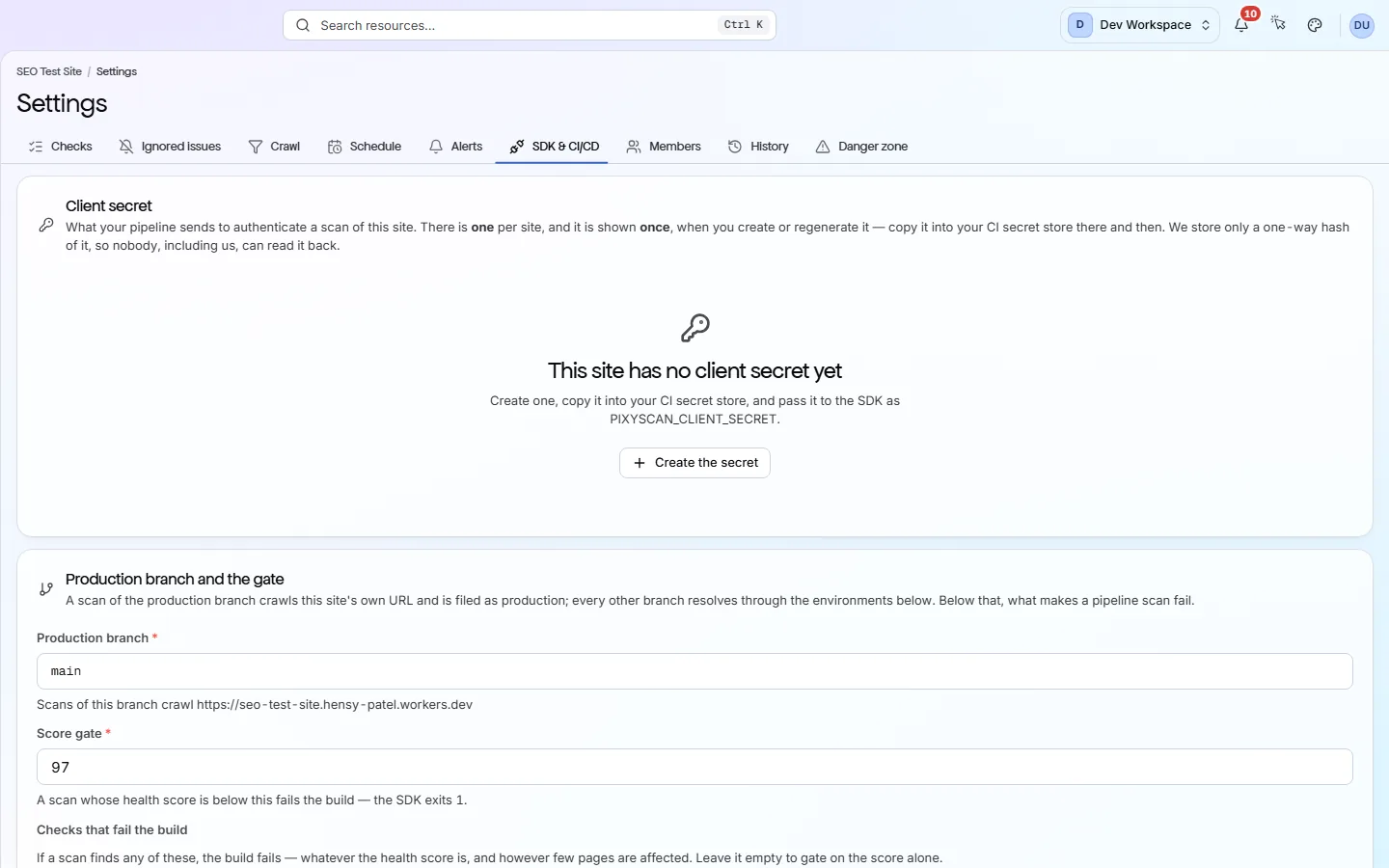
.github/workflows/seo.yml
- name: SEO gate
  run: npx pixyscan-sdk run --client-secret "$PIXYSCAN_SECRET"
  env:
    PIXYSCAN_SECRET: ${{ secrets.PIXYSCAN_SECRET }}
The branch is detected automatically on GitHub Actions, GitLab CI, CircleCI, Bitbucket Pipelines and Vercel. Under Checks that fail the build you can also list specific checks that fail the build whenever they are found, whatever the score, with pages exempted per check. Leave that list empty to gate on the score alone.
| Field | Exit code | What it does |
|---|---|---|
| Passed | 0 | The score met the score gate, and no listed check was found. |
| Gate failed | 1 | The score is below the gate, or a check on your fail list was found. This is the code that should fail the build. |
| Bad input | 2 | Something in the pipeline setup is wrong, such as a missing secret, an unknown branch or a wrong config path. Fix the setup and run it again. |
| Outage | 3 | PixyScan could not be reached, or the scan did not finish in time. Retry the step. |
Change the default score gate
After you change a setting#
Why didn't my results change? Settings apply to your next scan, not to the results on screen.
Changing a crawl setting does not change the scan already on screen. Until you scan again, the site's screens show a notice saying your settings have changed since this scan, with a Rescan button and a link to review the settings. The History tab records what changed, who changed it and when.
app.pixyscan.com/w/…/s/…/settings?tab=history
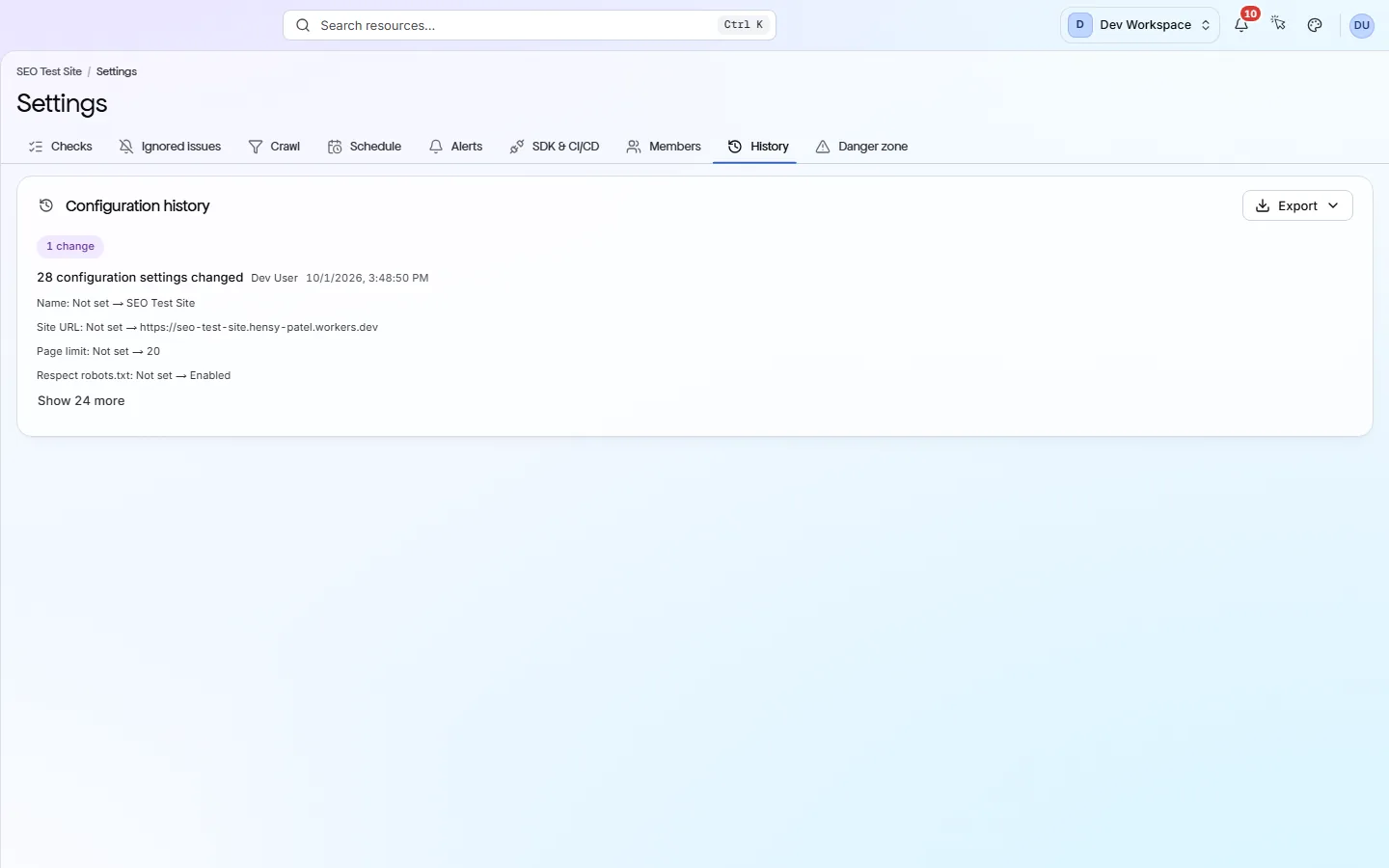
Does something here not match what you see in the app? Tell us