

User guide2 min
Site alerts
Site alerts shows the same alerts as the workspace list, but only for the site you have open. Use it when you want the history of one site without the rest.
How to get there#
Site alerts is in the Manage group at the bottom of the site sidebar, above Settings.
- 1
Open Site alerts in the sidebar
Open the site, then choose Site alerts under Manage. Can't see it? Viewers do not get alerts, so the entry is hidden for the viewer role.
- 2
Choose Unread or All
The screen opens on Unread. Alerts you have opened move to the All tab, so nothing is lost.
- 3
Click a row to open that scan
Score and critical-issue alerts open the scan's Issues screen. Other alerts open its overview.
app.pixyscan.com/w/…/s/…/alerts
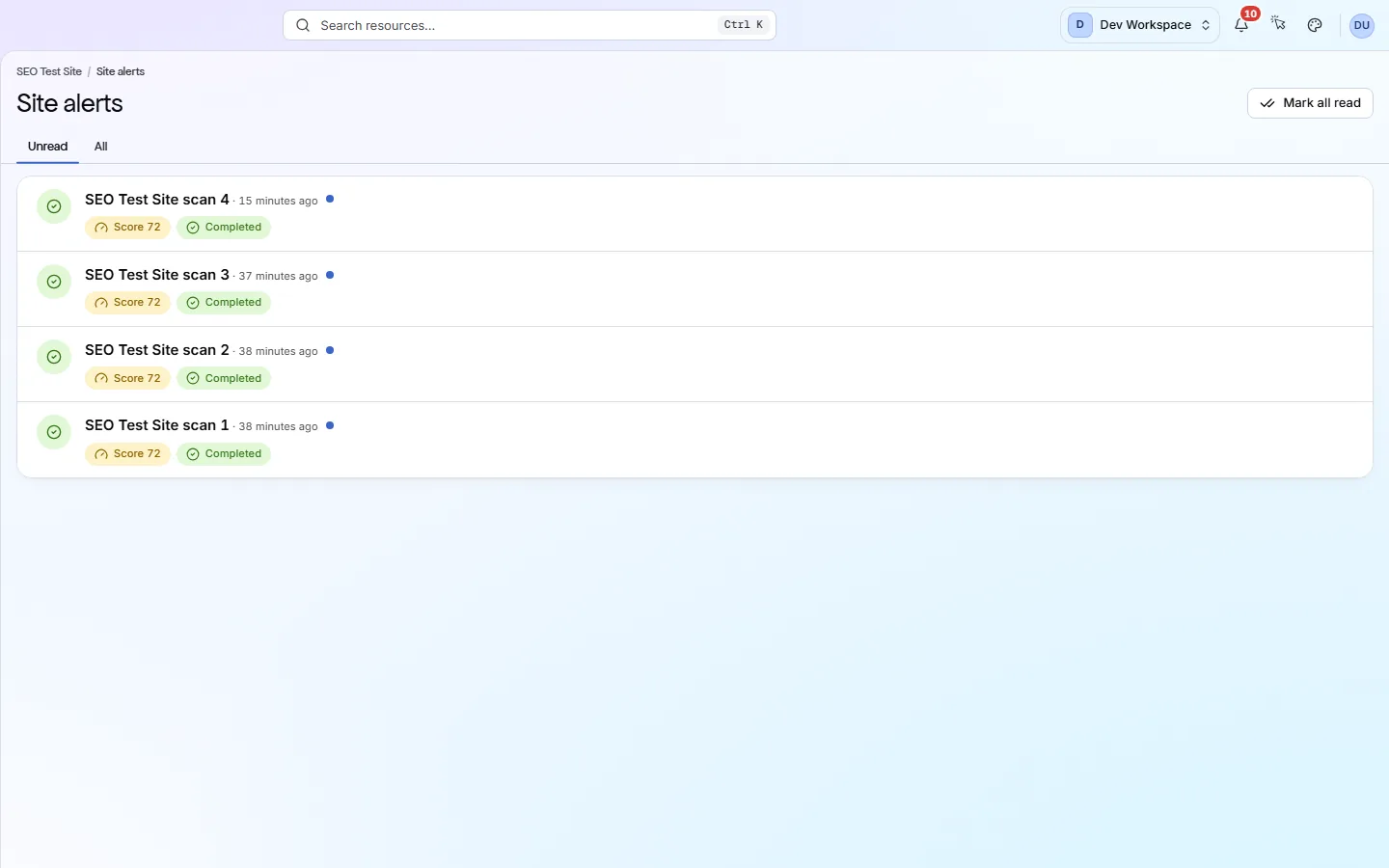
What each row shows#
One row per scan, newest first.
Each row gathers every event from one scan. It can show:
The score, if it fell below your score gate (the lowest score you accept). The change since the last scan, for example 89 → 87. Any new critical issue. Whether the scan Completed or Failed, with the reason in plain words if it failed.
Mark all read clears the unread alerts for this site only. For more on each part of a row, see Workspace alerts.
Want alerts by email, Slack or webhook?
Does something here not match what you see in the app? Tell us