

User guide5 min
The issues work list
The Issues screen lists every check that failed on your site. The fix worth the most points is at the top. Treat it as your to-do list: start at the top, fix what you can, then scan again.
Read the list#
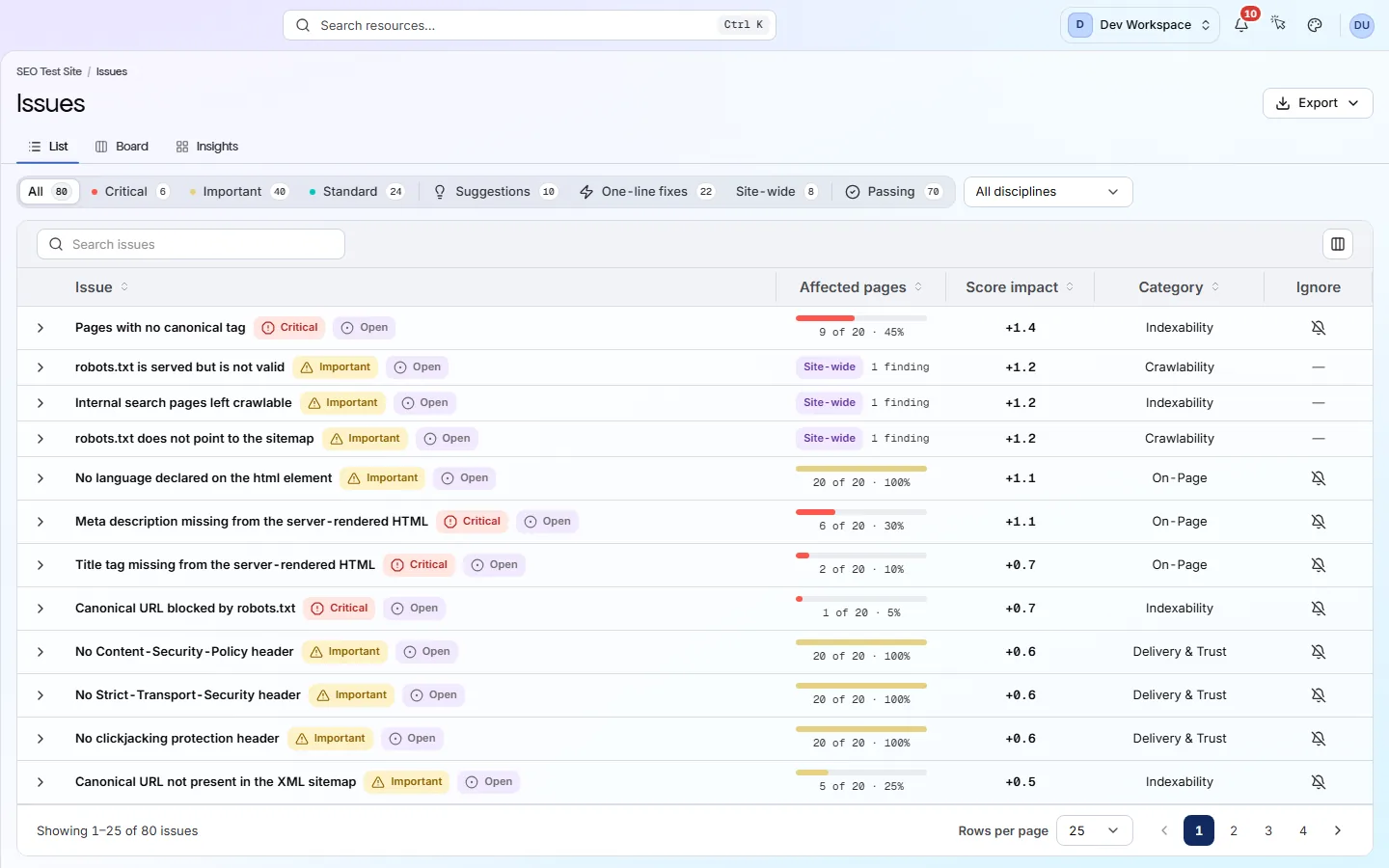
Each row is one failing check: how serious it is, how many pages have it, and how many points a fix wins back.
Look at Affected pages first. It tells you what kind of fix you face. 68 of 79 · 86% usually means one mistake in a shared template, so one change fixes every page. 1 of 79 · 1% means a problem on one page.
app.pixyscan.com/w/…/s/…/issues
| Field | Example | What it does |
|---|---|---|
| Issue | Duplicate meta descriptions | The check's name, its severity (Critical, Important, Standard or Suggestion) and a badge comparing it with the previous scan. The badges are in the next table. |
| Affected pages | 67 of 79 · 85% | How many crawled pages have the problem. Some problems belong to the whole site, such as robots.txt (the file that tells crawlers where they may go) or the sitemap. These say site-wide instead. |
| Score impact | +1.1 | Points your health score would gain if this check passed everywhere. Suggestions and ignored checks show a dash, because they do not change the score. |
| Category | On-Page | Which of the 10 categories the check is in, such as Crawlability, Indexability or Structured Data. |
| Ignore | Per check | Opens the Ignore issue dialog. Use it to stop listing this check on every page, some pages, or all but some pages. |
| Field | Means | What it does |
|---|---|---|
| New | Not failing before | The previous scan had no finding for this check. This one does. Something recent probably caused it. |
| Open | Still failing | Failing last time too, and on no more pages than before. |
| Regressed | Failing and spreading | Failing last time too, and now on more pages. Look at these early: the problem is growing. |
| Resolved | Fixed | Failing last time, passing now. You find these under the Passing filter. |
| Not compared | No baseline | No earlier scan of this branch to compare with, or the earlier scan did not run this check. Suggestions are never compared. |
Three views of the same findings#
The List, Board and Insights tabs show the same failing checks in three ways.
| Field | Answers | What it does |
|---|---|---|
| List | What do I fix next? | The sorted table above. It is the default, and the view you will use most. |
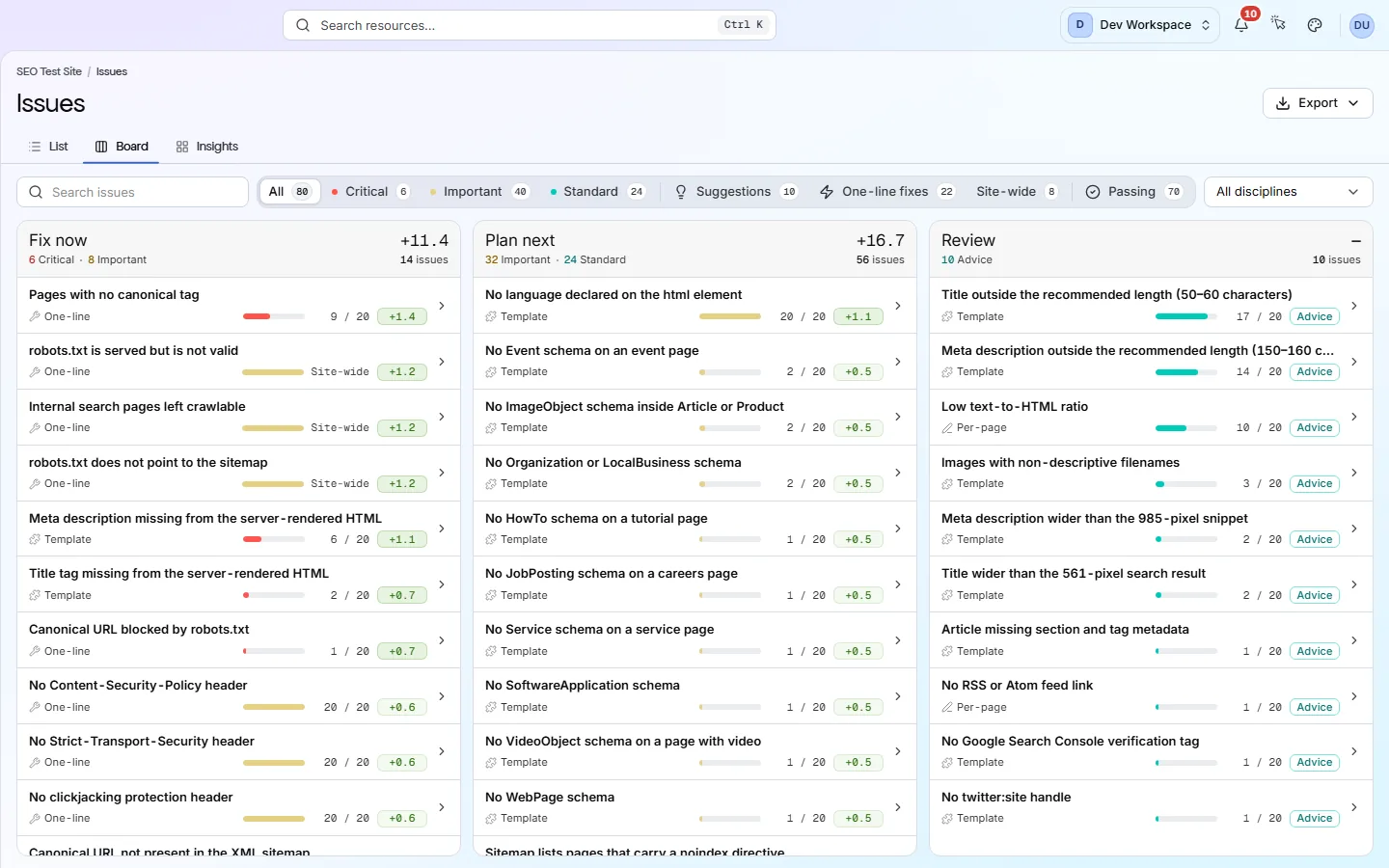
| Board | How do I split the work? | The same checks in three columns. Fix now: critical checks and quick settings fixes. The middle column: every other scored check. Review: suggestions. Each column shows the points it could win back. |
| Insights | Where are the problems? | A grid of severity against pages affected (click a cell to filter the list), and a chart of the points each category costs you. |
Board
Work through the list#
Filter, open a check, fix it on your site, scan again. Repeat.
- 1
Filter to what you have time for
The filters above the list are All, Critical, Important, Standard, Suggestions, One-line fixes, Site-wide, Ignored and Passing, each with a count. One-line fixes need a single server or settings change. Ignored shows once you have ignored something. You can also search by name, or pick a category from All disciplines.
- 2
Open the top check and read its guide
Click a row. You see what was found, every affected URL, and a guide on why it matters and how to fix it. See Inside a finding.
- 3
Fix it on your site
PixyScan does not change your site. You or your developer make the change, using the list of affected URLs to find the right pages or templates.
- 4
Scan again and open Changes
Once the fix is live, run a new scan. The Changes screen shows what your fix resolved and whether anything new broke.
Ignoring a check#
Ignore a check when it does not apply to some or all of your pages. It still counts towards your score.
- 1
Open the Ignore issue dialog
Press the ignore button on a row, or Ignore on the check's own page.
- 2
Choose where to ignore it
Under Ignore on, pick Every page, Only these pages or Every page except these. Add URL patterns if needed. The rule starts from the next scan.
Why can't I ignore some checks? Site-wide checks do not belong to any single page, so they cannot be ignored.
What happens to an ignored check? It moves to the bottom with an Ignored badge, and Score impact shows a dash. It is not removed or treated as fixed: it still costs the same points. Edit or remove rules on the Ignored issues tab of the site's Settings.
If someone else does the fixing#
Send the person making the changes an export of the list.
Export at the top downloads the list exactly as you filtered it: PDF, CSV, Excel, JSON or Markdown. For a full written report of the scan, use the Reports screen. Reports are on every tier; Free gets the findings without the fix instructions.
Leave suggestions until last
Does something here not match what you see in the app? Tell us