

User guide2 min
Your account
Your account settings belong to you, not to a workspace. What you change here, such as your name, password or theme, applies in every workspace you are in.
How to get there#
Start from the account menu in the top bar.
- 1
Open the account menu in the top bar
It shows your email address, a quick Light, Dark or System theme switch, and Sign out.
- 2
Choose Account settings
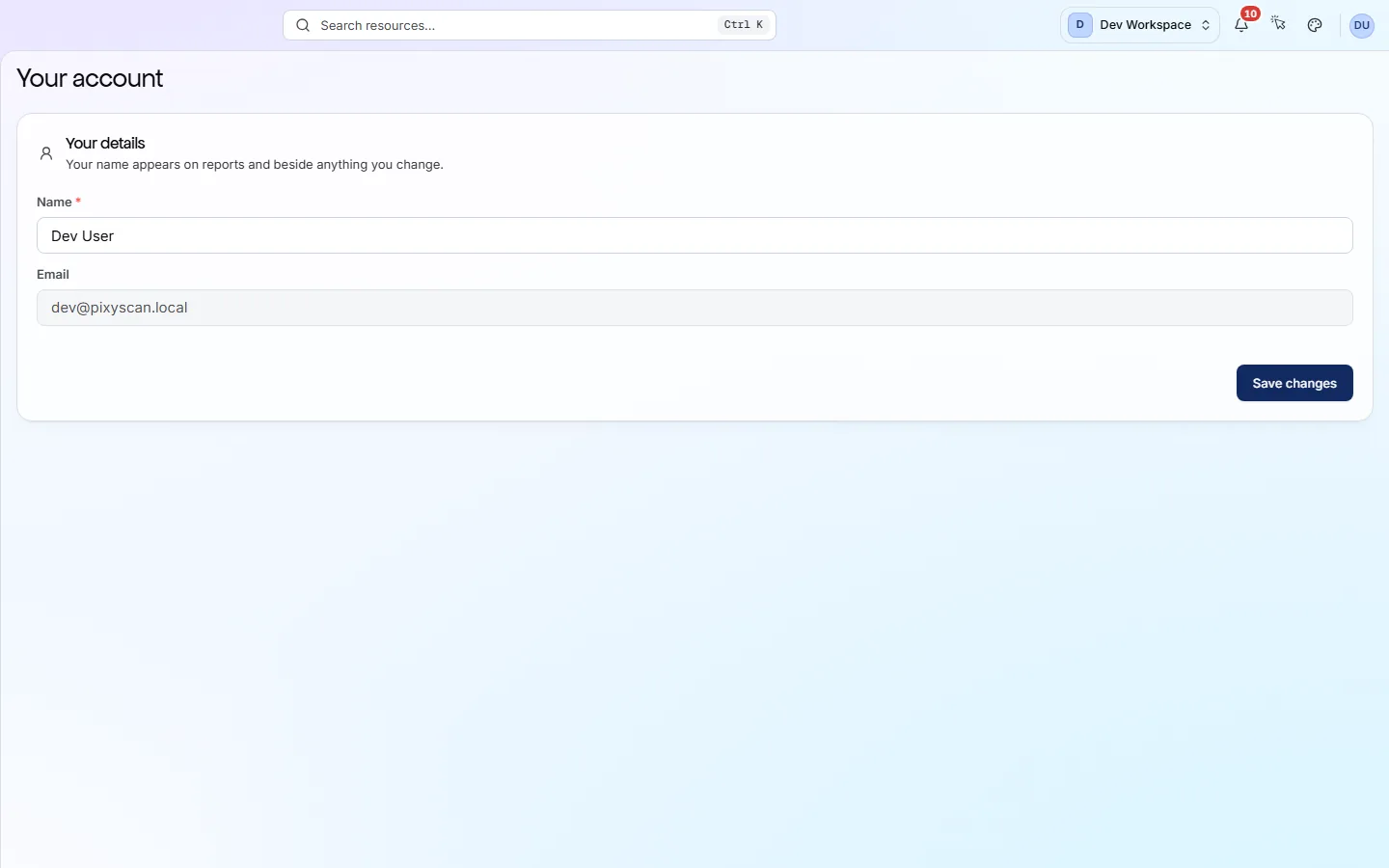
The Your account screen opens on Profile. The other sections are listed on the left.
app.pixyscan.com/account
The four sections#
What each one holds and what you can change.
| Field | Holds | What it does |
|---|---|---|
| Profile | Name, email | Change the name shown on reports and next to anything you change, then press Save changes. Your email is how you sign in, so it cannot be changed here. |
| Security | Password | Type a New password of at least 8 characters, confirm it, and press Change password. You stay signed in on this device. |
| Privacy | Your data | What PixyScan staff can and cannot see about your account, and a log of every time staff opened it. |
| Appearance | Theme, accent | Choose Light, Dark or Match my system, and pick an accent colour for highlights. Indigo is the default. |
Signed in with Google? No password form?
If you use Continue with Google, Google manages your password. The Security section shows a notice instead of a form. Change your password in your Google account.
Leaving a workspace or closing your account
You cannot leave a workspace yourself. A workspace admin removes you on that workspace's Members screen, and your account stays. You cannot delete your account in the app yet, so contact us if you need it removed.
Does something here not match what you see in the app? Tell us