

User guide4 min
Members and roles
Members are the people who can use your workspace. Each person's role decides what they can do. Members and Viewers only see the sites you give them, so you can share one site with a client without showing them the rest.
Invite someone#
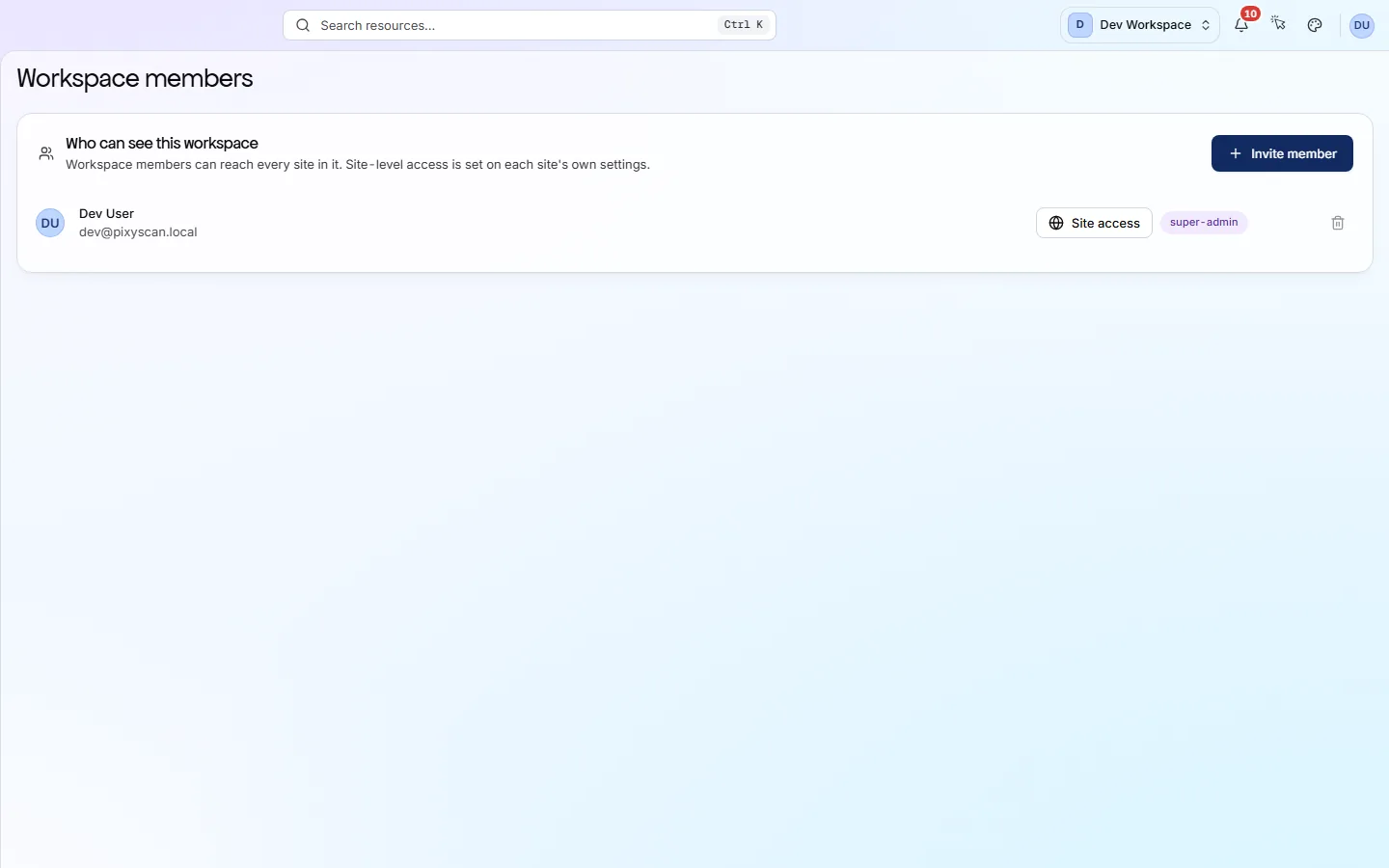
You invite people by email from Members, in the Settings group of the workspace sidebar.
- 1
Choose Members in the workspace sidebar
It is under Settings. Everyone in the workspace is listed under Who can see this workspace.
- 2
Press Invite member
Enter their Email, pick a Role (Admin, Member or Viewer, explained below) and press Send invitation.
- 3
They accept from the email
The email has a link to accept. No PixyScan account yet? They create one with the same email address first.
Until they accept, they show with an Invited badge. The invitation expires after two days. You can cancel it from its row.
- 4
Give Members and Viewers their sites
Members and Viewers start with no sites. Open each site's Settings, go to the Members tab, press Add member and pick them from the list.
The Site access button on their row shows which sites they can reach.
app.pixyscan.com/w/…/settings/members
What each role can do#
The role decides what a person can do. For Members and Viewers, it also limits which sites they see.
| Field | Sites | What it does |
|---|---|---|
| Super Admin | Every site | The person who created the workspace. Can do everything, including renaming the workspace, managing the subscription and billing, and setting report branding. This role cannot be invited, changed or removed. |
| Admin | Every site | Manages sites, scans, schedules, alerts, CI/CD and members. Cannot change the workspace's name, subscription or branding. Always has access to every site. |
| Member | Sites you add them to | Runs scans, manages schedules, adds sites and reads every report on their sites. |
| Viewer | Sites you add them to | Read-only on their sites. Cannot start scans. Can only be added to a site as a Viewer. |
How do I share just one site with a client?
To remove someone, use the controls on their row. They lose access at once, but anything they created stays. An Admin cannot change or remove another Admin.
To manage who sees one site, use that site's Settings → Members tab.
Why is Invite member locked?#
Because every seat is taken. A seat is one person in the workspace, and each tier includes a set number.
Everyone in the workspace uses a seat. So does every invitation not yet accepted. When all seats are taken, Invite member shows a lock and opens the upgrade options instead.
| Field | Seats | What it does |
|---|---|---|
| Free | 1 | Only you. To invite anyone, you need a paid tier. |
| Hobby | 2 | You and one other person. |
| Basic | 3 | You and two other people. |
| Pro | 10 | Room for a larger team. |
| Enterprise | Unlimited | As many people as you need, agreed in your contract. |
Everyone signs in the same way: email and password with an emailed code, or Continue with Google. Single sign-on (SSO, signing in through your company's own login) is not available.
See how many seats are in use on the Billing screen. Compare the tiers
Does something here not match what you see in the app? Tell us